Autopost · Shopify
Auto post Shopify products to Facebook groups
Shopify gives every collection and every blog a built-in Atom feed. Connect one to PilotPoster and each new product or article is shared to the buy and sell, hobby and local groups where your shoppers already browse.
4.5 on the Chrome Web Store · Featured 1-day trial for $0 Cancel anytime
How do I auto post Shopify products to Facebook groups?
Add .atom to a collection URL, such as yourstore.com/collections/all.atom, and paste it into a new RSS campaign in PilotPoster. When a new product appears at the top of that feed, PilotPoster shares it to the Facebook groups you picked, one group at a time.
Two Shopify feeds, two jobs
Most stores use both, and RSS autoposting handles either one. The collection feed is for selling: each new product goes to buy and sell groups and niche groups that welcome products, such as a candle maker sharing new scents to home decor groups. The blog feed is for everything else: gift guides, care tips and behind-the-scenes posts that work in groups where hard selling is off limits. Shopify documents the blog feed in its Help Center (the blog page URL with .atom added), and every collection page works the same way.
Build a collection just for your groups
You may not want every product in every group. Create a smart (automated) collection with a condition such as "product tag is equal to groups", then tag the products you want shared. Its feed, /collections/your-handle.atom, now holds only those products. Pair it with a saved group list of groups that allow selling, and read how to sell in Facebook groups for the post styles that move product there.
How often to add products
PilotPoster shares the newest product each time it checks, every 5 minutes. If you upload ten products in one sitting, the last one is the one that goes out. Release new products one at a time, spaced a few hours apart, so each gets its own turn in your groups. A few products a week keeps you visible without filling a group’s feed. For best sellers, run a weekly recurring post with an AI rewrite for each group and the store link in the first comment. The ecommerce group marketing guide has more.
How to autopost Shopify to Facebook groups
Four steps, about five minutes. Connect the feed once, and your new products share themselves from then on.
-
Step 1: Pick the Shopify feed you want to share
For new products, use a collection feed:
https://yourstore.com/collections/all.atomfor everything, orhttps://yourstore.com/collections/new-arrivals.atomfor one collection. For articles, use your blog feed:https://yourstore.com/blogs/news.atom, where news is the handle of Shopify’s default blog. -
Step 2: Check that your newest item is on top
Open the feed in your browser. The first entry is the one PilotPoster treats as newest, so it should be your latest product or post. If a collection lists items in a different order, change its sort order to newest first and check again.
-
Step 3: Paste the feed into a new RSS campaign
In the PilotPoster dashboard, open RSS Campaigns and click New RSS Feed. Paste the feed URL, pick a saved group list and set the Time Between Posts (anywhere from 5 minutes to 6 hours). Keep Include Description off for product feeds: the title and link are enough, and Facebook builds the preview from your product page. Then start the campaign.
-
Step 4: Publish, then check the RSS Logs
PilotPoster checks the feed every 5 minutes. When a new item shows up, it goes to your groups one at a time from your own Chrome browser, and each share lands in RSS Logs with the group and the result. Add your next product and watch it reach your groups.
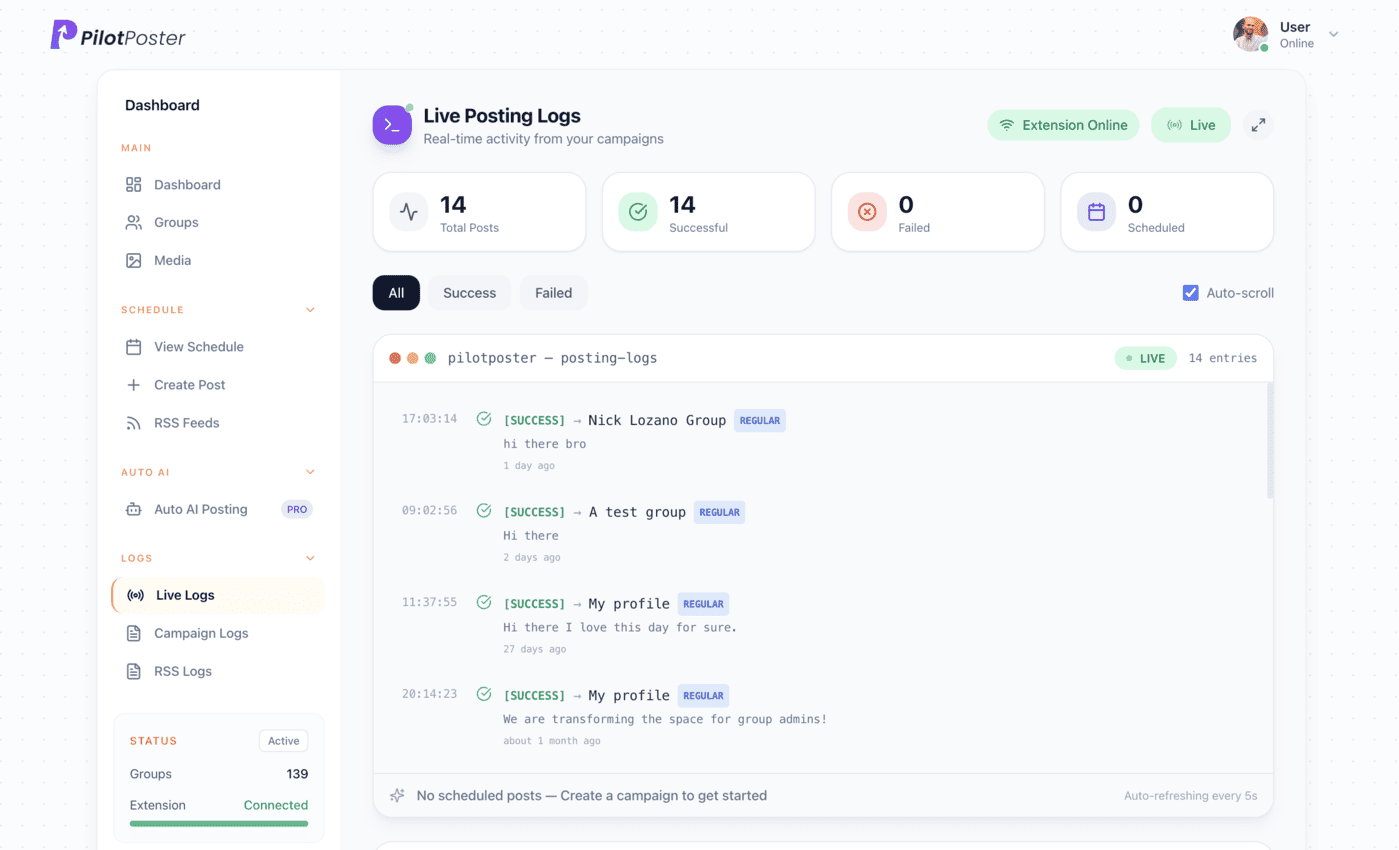
Live posting logs: every post, the group it went to, and when.
Does Shopify have an RSS feed for products?
Yes. Add .atom to any collection URL to get its Atom feed, for example yourstore.com/collections/all.atom for every product, or a single collection’s URL plus .atom. PilotPoster reads Atom feeds the same way it reads RSS, so you can paste either one into a campaign.
What is my Shopify blog feed URL?
It is your blog page URL with .atom added. The default blog is called News, so the feed is usually yourstore.com/blogs/news.atom. If you created another blog, use its handle instead, such as yourstore.com/blogs/recipes.atom. Open it in a browser to confirm it loads.
Can I share only some products, not my whole catalog?
Yes. Make an automated collection that includes only products with a tag you choose, such as groups, and connect that collection’s .atom feed. From then on, tagging a product is how you decide it goes to your Facebook groups, and removing the tag takes it out.
Should I turn on Include Description for products?
Usually not. Shopify product descriptions in the feed carry store formatting, and a short title plus link reads better in a group. Facebook pulls the product image and name into a preview card from the link. Use a recurring post if you want a custom pitch.
Will it post products I already have when I connect the feed?
No. PilotPoster takes the newest item at the moment you connect as its starting point and only shares products that appear after that. To promote existing best sellers, schedule them as recurring posts with a unique version for each group.
Keep exploring
Related pages
- Facebook group marketing for ecommerce Sell products in groups the right way.
- How to sell in Facebook groups Post styles that sell without spamming.
- PilotPoster for online stores The full playbook for ecommerce sellers.
- Autopost YouTube to groups Share every new upload, or one playlist, to the groups that love your topic.
- Autopost Substack to groups Share each new issue with its subtitle to the groups your readers live in.





4.5 on the Chrome Web Store
Put your new products in front of every group
Connect it once, and everything new you publish reaches the groups you picked, on autopilot.