
Facebook group insights are the free analytics Meta gives group admins: growth, engagement (activity, active members, popular days and times, top posts), admin and moderator activity, and top contributors. To check them, open your group, click Manage and scroll to Insights. If insights are not showing, you are usually not an admin, the group is below a member threshold (50 for top posts, 250 for post insights and demographics), or you are on mobile, where some metrics are missing.
Facebook group insights answer the question every admin eventually asks: is anyone actually reading this? Most guides on the topic date from 2017 to 2019, and the menus have moved since. This guide covers what is in group insights today, according to Meta's own Help Center, what each metric means, and what to do when a number moves.
It also covers the two gaps people hit most: insights that will not show up, and the clicks, leads and sales that group insights never measures.
What Facebook Group Insights Are (and Who Can See Them) #
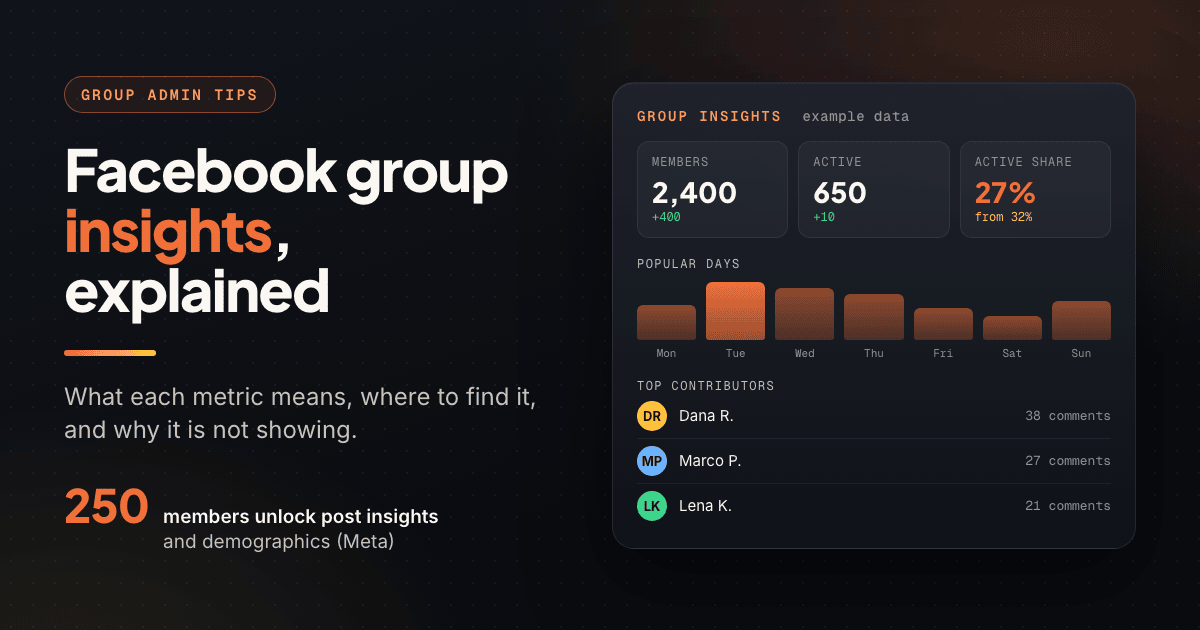
Group insights lives inside every group's admin tools. Meta's article View insights about a Facebook group you admin describes it as metrics about member activity and engagement that admins use to see their most active members and which posts get the most engagement.
Three access rules matter:
- It is an admin tool. Meta's article is written for the people who admin a group. Regular members never get an Insights section, even in groups they post in every day.
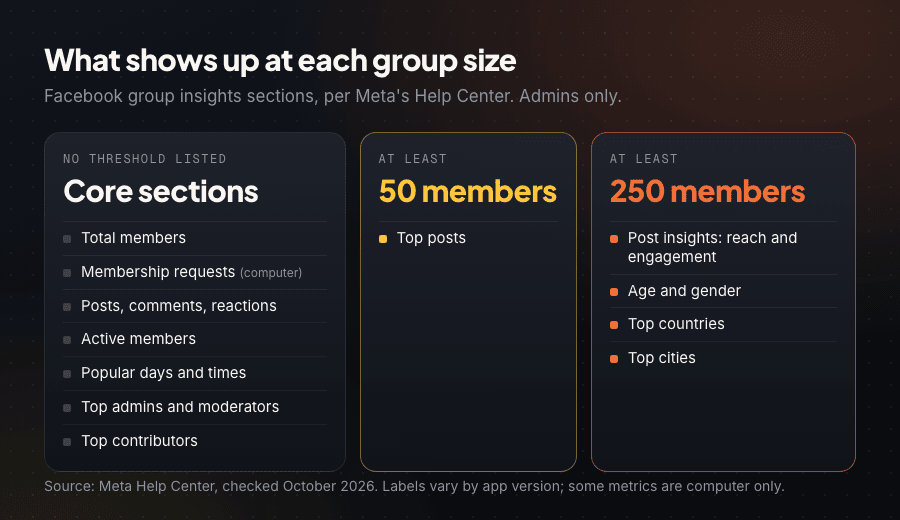
- Some sections need a minimum group size. Meta says that if your group has at least 50 members you can see insights for top posts, and that per-post insights plus age, gender, top countries and top cities need at least 250 members (Meta Help Center).
- Desktop shows the most. Meta notes that "some metrics are only available from a computer," and membership requests is one of them.
Meta's admin versus moderator comparison lists membership approvals, post approvals, removals and pinning for both roles, but it does not list insights. If you are a moderator and the Insights section is missing, ask an admin to check it or to share the numbers with you.
How to Check Facebook Group Insights on Desktop and Mobile #
Facebook reshuffles admin menus between app versions, so treat these labels as current wording. The steps follow Meta's Help Center as of October 2026.
On a computer #
- Click Groups in the left menu of your feed (under See more if it is hidden) and open the group you admin.
- In the group's left menu, click Manage.
- Scroll down to Insights and choose a section, such as Growth or Engagement.
On iPhone or Android #
- Tap the menu, then Groups, then Your groups, and select the group.
- Tap Manage, scroll down and tap Insights.
Facebook group post insights #
For a single post, open it and click View insights below it. Meta calls this post insights, and it shows two numbers: reach (people who saw the post at least once, an estimate) and engagement (reactions, comments, shares, plus photo or video views and clicks). In public groups, reach "includes both members and non-members." Post insights need 250 or more members and only cover posts made after the feature became available in your group.
Every Facebook Group Insights Metric Explained #
These are the sections Meta lists today. The "good" column is a direction, not a benchmark: no independent study publishes typical group insights figures.
| Metric | What it measures | Good direction | What to do about it |
|---|---|---|---|
| Total members | Member count over time | Steady climb without sudden spikes | After a spike, check active members a month later |
| Membership requests (computer only) | Join requests received and how they were handled | Requests approved or declined quickly | A growing pending queue loses people; review daily or set up Admin Assist |
| Posts, comments, reactions | Total activity in the group | Comments growing faster than posts | Flat comments mean a broadcast feed; ask more questions |
| Active members | Members who were active in the group during the period shown | A stable or rising share of total members | Divide by total members each month; a falling share means growth is outpacing engagement |
| Popular days and times | When members are most active | Clear peaks you can plan around | Schedule your key posts just before the peaks, then test |
| Top posts (50+ members) | Posts with the most engagement | A repeatable format behind the winners | Turn the top format into a weekly theme |
| Top admins and moderators | Admin team activity | Work spread across the team | Rebalance if one person does nearly everything |
| Top contributors | Members who post and comment most | A widening circle of regulars | Thank them, tag them in questions, consider them for moderator |
| Age, gender, countries, cities (250+ members) | Who your members are | Matches the audience you set out to serve | Adjust topics and timing to the real audience |
| Guides (if enabled) | Guide and post completion, broken down by unit | Most new members finish the welcome guide | If completion drops at one unit, shorten or rewrite it |
Meta's article also lists group experts and mentorship sections for groups using those features. On September 29, 2026, Meta announced a new recognition role for top community voices that replaces contributor badges and the group expert role, so the experts section may change as that role rolls out.
The one ratio worth tracking: active members divided by total members #
Total members is a vanity number on its own. Active members over total members tells you whether the group is alive. Example math: a group with 2,000 members and 640 active members has a 32% active share. If next month it has 2,400 members and 650 active, the group grew but the share fell to about 27%, which means the new members are not participating yet. That is an onboarding problem, not a content problem. If the share keeps falling, use the 30-day plan in how to revive a dead Facebook group before chasing more members.
Meta's help pages do not document an export option or a fixed history window for group insights. Copy five numbers into a spreadsheet on the first of each month: total members, active members, posts, comments and pending requests. After three months you have trend lines Facebook will not give you in one view.
How to Read Top Contributors and Popular Days and Times #
Top contributors #
A group's health depends on the 10 or 20 people who answer questions when you are not around, which makes this the most useful list in insights. Read it three ways:
- Concentration: if the same three names fill the list every month, the group depends on them. Invite quieter members into threads by tagging them on topics they know.
- Newcomers: a new name in the top contributors is a good sign. Message them, thank them, and ask what they would like to see more of.
- Who is missing: a regular who drops off the list deserves a short check-in message.
Your strongest contributors are also your moderator shortlist. As Meta's new recognition role rolls out, admins can grant it to them directly, which gives them a badge and, per Meta, posts that publish faster.
Popular days and times #
Popular times show when members are active in your group, not when a post will perform best. A peak at 8 PM means most members are around then, and also that your post competes with everything else in their feed.
Use the chart as a starting point: schedule your most important post of the week 30 to 60 minutes before the biggest peak, so it is waiting at the top when members arrive. Then compare a morning slot against an evening slot over a few weeks. The best time to post in Facebook groups guide has a four-week testing framework that works with these charts.
Facebook Group Insights Not Showing? Causes and Fixes #
Work down this table in order. Rows marked Meta Help Center are documented causes; rows marked common fix often solve display problems but are not documented by Meta.
| What you see | Likely cause | Fix | Basis |
|---|---|---|---|
| No Insights option under Manage at all | You are not an admin of this group | Ask an admin to add you, or to share the numbers | Meta Help Center |
| Insights open, but no top posts | The group has fewer than 50 members | Grow past 50; the section appears then | Meta Help Center |
| No age, gender, countries or cities | The group has fewer than 250 members | Grow past 250 | Meta Help Center |
| No View insights link under a post | Fewer than 250 members, or the post predates post insights in your group | Check newer posts once you pass 250 | Meta Help Center |
| Membership requests missing on your phone | That metric is computer only | Open insights in a desktop browser | Meta Help Center |
| Insights missing in the app but visible on desktop | Outdated app or a rolling UI change | Update the Facebook app, then check on a computer | Common fix |
| Charts blank or flat in a brand new group | Not enough activity recorded yet | Post and invite for a few weeks, then check again | Common fix |
If you are a member looking for analytics on a group you joined, there is nothing hidden to unlock. Insights belong to the group's admins. Your own numbers come from engagement on your posts and the tracking you add to your links.
What Members See on Their Own Group Posts #
Members do not get reach numbers, only the reactions, comments and shares on their own posts. Facebook does track views of group posts: Meta's leave a group article notes that after you leave, "people will no longer know when you've seen a group post."
If you want a comparable number across groups, use engagement per member: (reactions + comments + shares) divided by the group's member count. The Facebook engagement calculator does the math, and it works for groups you admin and groups you only joined.
What Facebook Group Analytics Cannot Tell You #
Group insights measures attention inside Facebook, not what happens after someone leaves it. It cannot tell you:
- How many people clicked the link in your post
- Which group sent a booking, a sale or a quote request
- Whether a top post produced any revenue
- How your results compare across groups you do not admin
For that, add UTM parameters to every link: keep utm_campaign fixed for the offer and change utm_content for each group, so Google Analytics reports clicks and conversions per group. The free Facebook UTM builder generates the links. The full method, including a group ROI spreadsheet and how to decide which groups to keep, is in how to measure Facebook group marketing ROI.
Tracking Results in Groups You Do Not Own #
Marketers, freelancers and local businesses usually post in dozens of groups they joined rather than one group they run. None of those groups will ever show you insights, so build your own per-group view:
- Record every post: the group, the date, and a link to the live post.
- Track every link: one UTM or tracked link per group, so clicks are credited to the right community.
- Log outcomes: when a lead or sale arrives, note the group it came from.
- Review monthly: keep the groups that send clicks and customers, and replace the ones that never do.
PilotPoster is a web app plus Chrome extension that schedules posts to the groups you have joined, from your own logged-in browser, with no Facebook API and no stored Facebook password. Its posting reports record every post with the group, the time, the live link, the exact copy, and a reason for any post that did not go through, with CSV export. Outcome tracking adds short tracked links that credit each click, and any sale or booking you log, to the post and group it came from.
Frequently Asked Questions #
Why are my Facebook group insights not showing? #
Most often you are not an admin of the group, or you are on the mobile app, where some metrics are missing. Specific sections also need a minimum size: Meta says top posts need at least 50 members, and post insights plus demographics need at least 250. Check on a computer first.
How many members do you need for Facebook group insights? #
Meta's current Help Center ties sections to member counts rather than the whole dashboard: 50 members for top posts and 250 for per-post insights, age and gender, top countries and top cities. Older guides cite a single 50-member minimum for all insights.
Can members see Facebook group insights? #
No. Group insights is an admin tool. Members can see the reactions, comments and shares on their own posts, and can measure clicks by putting a UTM or tracked link in the post.
Is there a free Facebook group analytics tool? #
Yes: group insights is free and built into every group you admin. For groups you only joined, PilotPoster's posting reports record every post with its group and live link, and outcome tracking credits each click and logged sale to the group it came from. The manual method is a UTM link per group plus Google Analytics.
- Facebook group insights is an admin tool: open the group, click Manage, scroll to Insights.
- Sections include growth, engagement, admin and moderator activity, top contributors, demographics, and guides where enabled.
- Meta ties sections to group size: 50 members for top posts, 250 for post insights and demographics.
- Track active members divided by total members monthly; a falling share is an onboarding warning.
- Insights never measures clicks, leads or sales, so add a UTM or tracked link per group.
- Meta documents no export, so copy your key numbers into a spreadsheet each month.
Related Reading #
- How to Measure Your Facebook Group Marketing ROI (What's Working)
- Best Time to Post in Facebook Groups for Maximum Engagement
- How to Grow a Facebook Group from 0 to 10,000 Members (2026)
- How to Revive a Dead Facebook Group: The 30-Day Resurrection Plan
- Facebook Group Statistics 2026: The Numbers That Matter for Business


